
August 28, 2026
Version 0.8.11 - Release Notes
CubeForge 0.8.11 gives P1P1 polls a cinematic pack reveal, adds mixed-cube drafts, and refreshes draft setup and the dashboard.
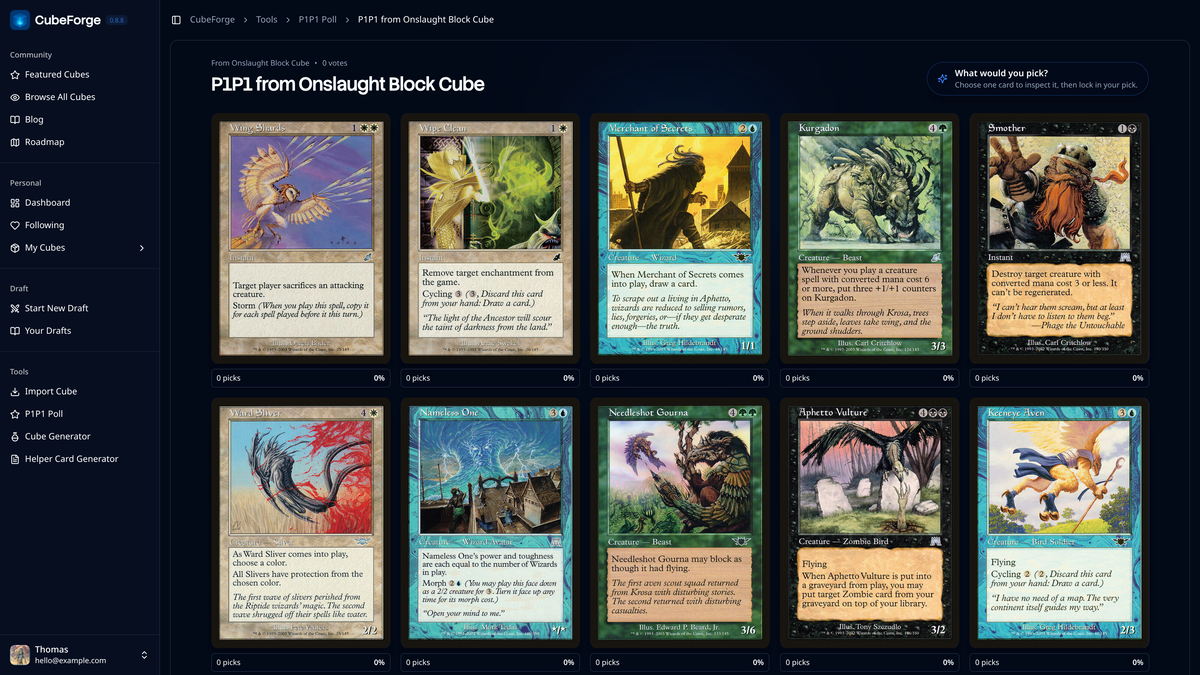
Version 0.8.11 gives P1P1 polls a much stronger first impression and makes several everyday parts of CubeForge easier to scan and use.
✨ P1P1 polls that feel like opening a pack
Opening a shared P1P1 poll now begins with a cinematic pack reveal. The cards are dealt into place before turning face up, giving the first pick of the draft the moment it deserves.
Choose a card to inspect it, move between the options, and lock in your pick when you are ready. Once you vote, the full results show how many people chose each card and the percentage of picks it received. If you return later, your choice remains clearly marked.
Poll owners can copy or share the link, close voting when the discussion is over, and archive older polls from the results page.
🃏 A simpler way to create and share a P1P1
The P1P1 creator now keeps the pack at the centre of the experience. You can draw a random pack from one of your cubes or choose the cards yourself, then preview it before publishing.
Add an optional title and voting deadline, start a poll directly from a cube page, and download a PNG when you want to share the discussion as an image. Your recent and archived P1P1 polls are also easier to find from the dashboard.
📦 Mix cubes across a draft
Drafts can now use a different cube for each pack. This makes it possible to recreate mixed-set draft progressions—such as two packs from one cube followed by a pack from another—or build entirely new combinations from your own cubes, public cubes, and CubeForge set cubes.
In the final settings step, open Advanced, choose Mix cubes in the Pack lineup, and select the cube that supplies each pack. Every player opens the same lineup in the same order, with pass direction and pack size shown alongside each choice.
🎲 Clearer draft setup
Starting a draft is now split into clearer steps: choose the cube first, then choose the draft format. Format cards use distinct colours and familiar player icons, while keeping the most useful details—player count and pack type—visible at a glance.
Cube selection now makes better use of the available width, with four-column grids and up to 12 public or set cubes shown per page. The final settings step has been tightened up as well, with a more consistent session-name field and less explanatory text competing with the choices themselves. From a completed draft, Draft Again takes you back to setup with the same cube already selected.
🧭 A cleaner dashboard and navigation
The dashboard now gives your cubes more room with the same four-column layout used by community pages. The old summary counters and duplicate followed-cubes section have been removed, while the main action now makes it clear that you can create or import a cube.
Most signed-in pages now include a compact footer with useful links and legal information. On guest pages, the language selector has moved into the roomier footer alongside the full Magic: The Gathering attribution.
If you find a bug or a card that looks wrong, please report it here or let me know in the CubeForge Discord.